
Sometimes, the same page on a website can be accessed through more than one URL.
For example:
https://example.com/product
and:
https://example.com/product?utm_source=email
may display exactly the same content.
You may also have different URL versions caused by HTTP and HTTPS, tracking parameters, category paths, filters, or URLs with and without a trailing slash.
Visitors may not notice much difference between these URLs. Search engines, however, need to decide which version should represent the page in search results.
That’s where a canonical tag can help.
A canonical tag tells search engines which URL you prefer as the main version of a page when duplicate or very similar versions exist.
In this guide, you’ll learn what canonical tags are, how to generate one, where to place it, when to use canonical URLs, and which common mistakes you should avoid.
What Is a Canonical Tag?
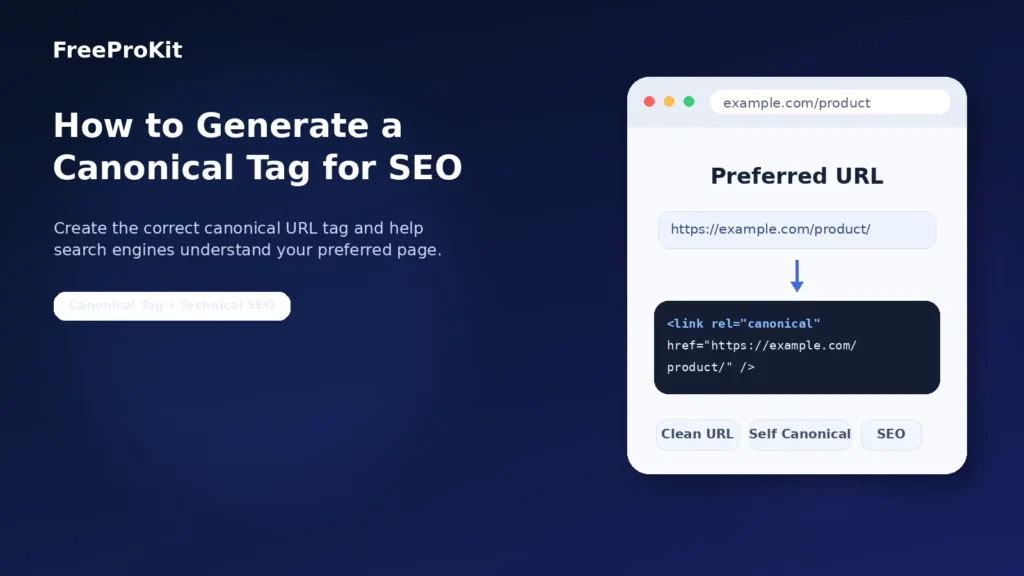
A canonical tag is an HTML <link> element that identifies the preferred URL of a page.
A typical canonical tag looks like this:
<link rel="canonical" href="https://example.com/page/" />
In this example:
https://example.com/page/
is the preferred URL.
The WHATWG HTML specification defines the canonical link relation as identifying the preferred URL for the current document.
Canonical tags are especially useful when several URLs display the same or substantially similar content.
Search engines are often able to identify duplicate or similar pages themselves.
However, it can still be useful to tell them which URL you prefer.
Suppose the same product can be accessed using:
https://example.com/products/shoes
https://example.com/products/shoes/
https://example.com/products/shoes?color=blue
https://example.com/products/shoes?utm_source=newsletter
If these URLs contain the same or very similar content, you may prefer one clean URL to represent the page.
For example:
https://example.com/products/shoes/
A canonical tag helps communicate that preference.
Google says canonicalization can help consolidate signals associated with duplicate URLs, simplify tracking, and reduce unnecessary crawling of duplicate versions. Google also makes it clear that your canonical preference is a signal rather than an absolute command, so Google may still select another URL.
How to Generate a Canonical Tag Online
You don’t need to manually write the HTML every time.
FreeProKit’s Canonical Tag Generator can generate the markup from the URL you want to use.
Step 1: Open the Canonical Tag Generator
Open the FreeProKit Canonical Tag Generator.
Step 2: Enter Your Preferred URL
Enter the complete URL that you want to represent the page.
For example:
https://example.com/blog/seo-guide/
Make sure you’re entering the version you actually want search engines to associate with the content.
Step 3: Generate the Canonical Tag
Generate your tag.
The result should look similar to:
<link rel="canonical" href="https://example.com/blog/seo-guide/" />
Step 4: Copy the HTML
Copy the generated canonical tag.
Step 5: Add It to Your Page
Place it inside the <head> section of the HTML page.
For example:
<head>
    <title>SEO Guide</title>

    <link rel="canonical"
          href="https://example.com/blog/seo-guide/" />
</head>
Google recommends adding the HTML canonical element to the <head> section of the page.
Where Should a Canonical Tag Be Placed?
For a normal HTML page, place the canonical tag inside <head>.
Correct:
<html>
<head>
    <title>Example Page</title>
    <link rel="canonical"
          href="https://example.com/example-page/" />
</head>

<body>
    ...
</body>
</html>
Don’t simply paste the tag into the visible content of your page.
If you’re using WordPress or another content management system, your SEO plugin or theme may already generate canonical tags automatically.
Before manually adding another one, check your page source first.
You generally want one clear canonical instruction rather than conflicting canonical tags.
What Is a Canonical URL?
A canonical URL is the URL you want to represent a group of duplicate or very similar pages.
For example:
https://example.com/article
https://example.com/article?source=facebook
https://example.com/article?source=email
If all three contain essentially the same article, you might choose:
https://example.com/article
as the canonical URL.
The parameter versions can then point back to it:
<link rel="canonical"
      href="https://example.com/article" />
Canonical Tag Example
Suppose your main product URL is:
https://example.com/products/blue-shirt/
A visitor might also reach it through:
https://example.com/products/blue-shirt/?utm_source=email
If the UTM parameter only tracks where the visitor came from and doesn’t change the page itself, you might use:
<link rel="canonical"
      href="https://example.com/products/blue-shirt/" />
This identifies the clean product URL as your preferred version.
What Is a Self-Referencing Canonical Tag?
A self-referencing canonical points to the page on which the tag appears.
For example, suppose your page is:
https://example.com/about/
The canonical tag can be:
<link rel="canonical"
      href="https://example.com/about/" />
Even though the page already has that URL, the tag makes your preferred version explicit.
Google recommends including a self-referencing canonical on a canonical page.
This can also help if alternative versions of the URL are discovered later.
Should Every Page Have a Canonical Tag?
Many websites use self-referencing canonicals on most of their indexable pages.
That can create a consistent signal about which URLs are preferred.
But having canonical tags everywhere isn’t useful if they’re incorrect.
Watch out for canonicals pointing to:
- The wrong page
- A broken URL
- An unrelated page
- A non-indexable page
- The wrong protocol
- An old domain
- A staging website
- An unexpected redirect
The accuracy of the canonical URL matters more than simply having a tag present.
When Should You Use a Canonical Tag?
There are several situations where canonical tags can be useful.
URLs With Tracking Parameters
Marketing campaigns often produce URLs such as:
?utm_source=email
or:
?utm_campaign=spring-sale
For example:
https://example.com/shoes/?utm_source=email
may display the same page as:
https://example.com/shoes/
If the tracking parameter doesn’t change the actual content, the clean URL may be the better canonical.
Filter and Sort Parameters
E-commerce websites often create URLs such as:
https://example.com/laptops?sort=price
and:
https://example.com/laptops?sort=newest
These pages may contain heavily overlapping content.
Canonicalization may form part of the strategy for dealing with them.
However, large websites with complex filtering and faceted navigation usually need a broader technical SEO strategy rather than automatically canonicalizing every filtered page.
HTTP and HTTPS Versions
A page might be accessible through:
http://example.com/page
and:
https://example.com/page
For a properly configured secure website, you’ll normally want the HTTPS version to be preferred.
Google says its systems generally prefer HTTPS pages over equivalent HTTP pages, although configuration problems or conflicting signals can affect that choice.
Ideally, HTTP URLs should also redirect visitors to HTTPS.
You can inspect redirects using FreeProKit’s Redirect Checker.
URLs With and Without WWW
You may have:
https://example.com/page
and:
https://www.example.com/page
If both versions work, choose a consistent preferred hostname.
Ideally, your:
- Canonical tags
- Redirects
- Internal links
- Sitemap URLs
should all support that same choice.
URLs With and Without a Trailing Slash
Depending on how your website is configured:
https://example.com/page
and:
https://example.com/page/
may be treated as different URLs.
Pick one format and use it consistently throughout the site.
Duplicate Product Pages
Sometimes the same product appears under several category paths.
For example:
https://example.com/shoes/blue-shoe
and:
https://example.com/sale/blue-shoe
If both pages show essentially the same product, you may decide that one URL should be the preferred version.
Printer-Friendly or Alternate Pages
Some websites create several versions of the same content.
You might have:
- A normal article
- A printer-friendly version
- An alternate presentation of the same article
If one page is clearly the main version and the others contain substantially the same content, a canonical tag may help identify the preferred URL.
Use an Absolute URL in Your Canonical Tag
It’s generally better to use the full URL.
Recommended:
<link rel="canonical"
      href="https://example.com/page/" />
Instead of:
<link rel="canonical"
      href="/page/" />
Google supports relative URLs but recommends absolute URLs because they’re less likely to cause configuration mistakes.
An absolute canonical URL includes:
- The protocol
- The domain
- The complete page path
For example:
https://freeprokit.com/tools/canonical-tag-generator/
Canonical Tag vs 301 Redirect
Canonical tags and redirects aren’t the same thing.
Canonical Tag
A canonical tag allows multiple URLs to remain accessible while indicating which URL you prefer.
For example:
page?utm_source=email
can remain available while pointing canonically to:
page
301 Redirect
A permanent redirect actually sends visitors and crawlers from one URL to another.
For example:
old-page
could redirect to:
new-page
If you no longer need the old URL to remain accessible, a permanent redirect is often more appropriate.
Google currently describes redirects as a strong canonicalization signal and rel="canonical" annotations as another strong signal.
Use FreeProKit’s Redirect Checker if you want to check where a URL is actually redirecting.
Canonical Tag vs Noindex
A canonical tag and a noindex instruction do different jobs.
A canonical effectively communicates:
“This is the URL I prefer to represent this content.”
A noindex instruction means:
“Don’t include this page in search results.”
They shouldn’t be treated as interchangeable.
Google recommends canonicalization rather than noindex when your goal is to select the representative URL among duplicate pages on the same website.
Canonical Tag vs robots.txt
A robots.txt file controls crawler access.
A canonical tag communicates your preferred URL.
These are different purposes.
Google specifically advises against using robots.txt as a canonicalization method because blocked URLs may still be indexed without their page contents being crawled.
Your XML sitemap should generally contain the URLs you consider the important versions of your pages.
Suppose your canonical page is:
https://example.com/blog/seo-guide/
It normally makes more sense to include that URL in the sitemap rather than several parameterized variations.
Google considers sitemap inclusion a canonicalization signal, although it describes it as weaker than redirects and rel="canonical".
Consistency is important.
Try to avoid situations where your:
- Canonical tag points to URL A
- Sitemap contains URL B
- Internal links point to URL C
- Redirects send users to URL D
The clearer your signals are, the easier your preferred URL is to understand.
Suppose you’ve chosen:
https://example.com/services/seo/
as your preferred URL.
Your internal links should normally point directly to it.
Instead of repeatedly linking to:
https://example.com/services/seo?ref=menu
link to:
https://example.com/services/seo/
where the parameter isn’t actually needed.
Google recommends linking internally to the URL that you consider canonical.
Common Canonical Tag Mistakes
Canonical tags are fairly simple HTML, but incorrect implementation can create confusing signals.
1. Canonicalizing Every Page to the Homepage
Don’t put this on every page:
<link rel="canonical"
      href="https://example.com/" />
unless those pages really are duplicate versions of your homepage.
Your articles, products, services, and category pages will usually need their own appropriate canonical URLs.
The canonical target should represent duplicate or substantially similar content.
A page about running shoes shouldn’t normally point canonically to a page about laptops.
3. Using the Wrong Protocol
Don’t accidentally use:
<link rel="canonical"
      href="http://example.com/page/" />
when the preferred page is:
https://example.com/page/
4. Leaving a Staging Domain in the Canonical
A particularly serious mistake is publishing something like:
<link rel="canonical"
      href="https://staging.example.com/page/" />
on your live website.
Always check automatically generated canonical tags when moving from development or staging to production.
A page should communicate one clear canonical preference.
If several tags point to different URLs, the signal becomes unnecessarily confusing.
6. Creating Canonical Chains
Suppose:
Page A → Page B
and:
Page B → Page C
If Page C is genuinely the preferred URL, it’s usually cleaner for Page A to point directly to Page C.
7. Pointing to a Broken URL
Make sure your canonical destination actually works.
Avoid pointing canonical tags to URLs returning:
- 404 errors
- Server errors
- Unexpected redirects
- Deleted pages
If you’re unsure whether the target redirects somewhere else, use FreeProKit’s Redirect Checker.
8. Canonicalizing Different Pages Just Because They Look Similar
Pages don’t need to be canonicalized simply because they share the same template.
For example:
/red-running-shoes/
and:
/blue-running-shoes/
may both deserve separate indexing if they represent different products and contain meaningfully different information.
Canonical tags aren’t a tool for removing every similar-looking page from search.
Canonical tags help search engines identify your preferred URL when several pages contain duplicate or very similar content.
But they shouldn’t be treated as a trick for hiding poor-quality pages.
Google says that some duplicate content is normal and that duplicate content itself isn’t automatically a violation of Google’s spam policies.
Canonicalization is mainly about choosing a representative URL and consolidating duplicate versions.
Can Google Ignore Your Canonical Tag?
Yes.
You can specify your preferred canonical URL, but Google may select another URL.
For example, imagine your website sends these signals:
Canonical tag → Page A
Sitemap → Page B
Internal links → Page B
Redirects → Page B
Your canonical tag is pointing one way while much of the rest of the website points another.
Google states that it may choose a different canonical from the one declared by the site owner.
Keeping your technical SEO signals consistent makes your preference clearer.
How to Check a Canonical Tag
After adding a canonical tag, verify that it’s working as expected.
Check the Page Source
Open the HTML source and search for:
canonical
You should see something similar to:
<link rel="canonical"
      href="https://example.com/page/" />
Check the URL carefully.
Check the Destination
Open the canonical URL.
Make sure it:
- Exists
- Loads normally
- Contains the expected content
- Doesn’t unexpectedly redirect somewhere else
If you aren’t sure about a redirect, use FreeProKit’s Redirect Checker.
Check Google Search Console
If you manage the website in Google Search Console, use URL Inspection to review the page.
Google’s canonicalization troubleshooting documentation recommends URL Inspection for checking which page Google currently considers canonical.
You can’t insert an HTML <link> tag into a PDF’s <head> because a PDF isn’t an HTML document.
Instead, canonical information for supported non-HTML documents can be sent using an HTTP Link response header.
For example:
Link: <https://example.com/preferred-document.pdf>; rel="canonical"
Google documents this approach for non-HTML documents such as PDFs.
This is normally configured at the server level.
Can a Canonical Point to Another Domain?
Canonical link relationships can technically point to a preferred URL on another hostname or domain.
However, cross-domain canonicalization should be used carefully.
The destination should genuinely represent the preferred or duplicate version of the content.
If you’re permanently moving an entire website to another domain, redirects should usually form an important part of the migration rather than relying only on canonical tags.
Some websites generate SEO tags using JavaScript.
Google can process JavaScript-generated canonical information, but recommends making your canonical preference as clear as possible.
Google’s current guidance recommends placing the canonical in the original HTML when possible and avoiding JavaScript changes that create conflicting canonical information.
Simple Canonical Tag Checklist
Before publishing a page, check:
- Is this the URL you actually want to represent the page?
- Does the canonical URL work?
- Does it use HTTPS?
- Is the correct hostname being used?
- Is your trailing-slash format consistent?
- Have unnecessary tracking parameters been removed?
- Is the tag inside
<head>? - Are you using an absolute URL?
- Is there only one clear canonical target?
- Do internal links point to your preferred URL?
- Does your sitemap contain the preferred version?
- Do redirects agree with the canonical?
- Have you accidentally referenced a staging domain?
Spending a few seconds checking these details can prevent much more difficult troubleshooting later.
Frequently Asked Questions
How Do I Generate a Canonical Tag?
Choose the URL you want to use as the preferred version and add it to:
<link rel="canonical"
      href="https://example.com/page/" />
You can also create the markup using FreeProKit’s Canonical Tag Generator.
Where Do I Add a Canonical Tag?
For an HTML page, place it inside the <head> section.
For example:
<head>
    <link rel="canonical"
          href="https://example.com/page/" />
</head>
They can be particularly useful when the same or substantially similar content is available through several URLs.
Canonical tags help communicate which URL you prefer as the representative version.
Should Canonical URLs Use HTTPS?
If HTTPS is your correct live version, use HTTPS consistently in your canonicals, redirects, sitemap, and internal links.
Should Canonical URLs Include UTM Parameters?
Usually not when UTM parameters only track marketing attribution and don’t meaningfully change the content.
For example:
https://example.com/page/?utm_source=email
might point canonically to:
https://example.com/page/
Should a Canonical Page Point to Itself?
Google recommends self-referencing canonicals.
For example, on:
https://example.com/contact/
you can use:
<link rel="canonical"
      href="https://example.com/contact/" />
Can a Canonical Tag Point to Another Website?
It can, but the destination should genuinely represent the preferred duplicate or substantially similar version.
Don’t point unrelated pages to another website simply because that site has greater authority.
Is a Canonical Tag the Same as a Redirect?
No.
A canonical keeps the original URL accessible while indicating a preferred URL.
A redirect actually sends users and crawlers somewhere else.
Can I Use robots.txt Instead of a Canonical Tag?
No.
robots.txt controls crawler access. It isn’t a replacement for canonicalization.
Can Google Choose a Different Canonical?
Yes.
Your canonical annotation communicates a preference, but Google’s systems can choose a different representative URL.
How Can I Check My Canonical URL?
Check your page source, test the canonical destination, inspect redirects, and use Google Search Console’s URL Inspection feature.
Generate a Canonical Tag for SEO
Canonical tags are a small piece of HTML, but they’re useful when your website has several URLs showing the same or very similar content.
The basic format is simple:
<link rel="canonical"
      href="https://example.com/preferred-page/" />
The most important part isn’t simply adding the tag.
It’s choosing the right URL.
Your canonical URL should be live, accurate, consistent, and supported by the rest of your website’s setup.
You can use FreeProKit’s Canonical Tag Generator to quickly generate the markup.
If you’re also troubleshooting URL changes, use FreeProKit’s Redirect Checker to see where your URLs are actually sending visitors.
For additional technical guidance, Google’s canonical URL documentation explains how Google handles redirects, canonical tags, sitemaps, self-referencing canonicals, PDFs, and other duplicate-URL situations.
When your canonical tags, redirects, internal links, and sitemap all support the same URL, you’re giving search engines a much clearer picture of which version you want to represent your content.